Settings Window
Oct 15, 2025

Settings Window
To ensure proper functionality of OSC⚡️See, open Settings and configure audio I/O plus OSC ports and IPs.
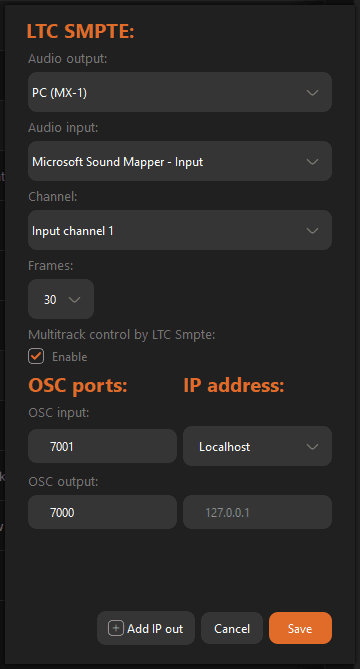
Audio Setup
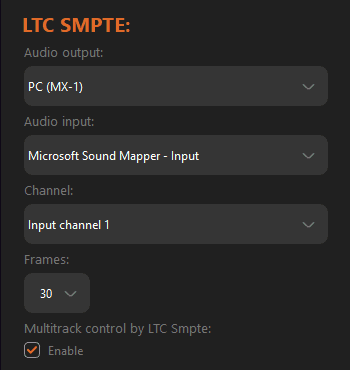
Input: select the device that carries the LTC SMPTE audio channel and the FPS for your project.
Output: select an audio output device if you need to send audio to PA/FOH (e.g., LTC or program audio). Otherwise, leave disabled or use system default.
Multitrack Mode (LTC SMPTE)

Keep all tracks active at once under LTC SMPTE. No more arming track-by-track; every track listens and will execute (or not) by schedule.
Warning (as shown in-app):
By enable this option, only Live Mode and the SMTE source can be used. Rec Mode, file and Free sources will be disabled.
This switches to Live under SMPTE, disabling Record, Audio File, and Free so all tracks stay armed for incoming timecode.
OSC Communication
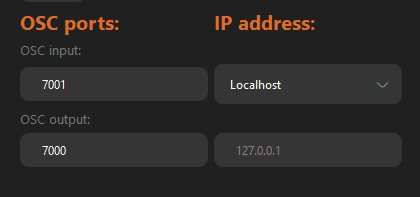
Configure Input and Output OSC ports.
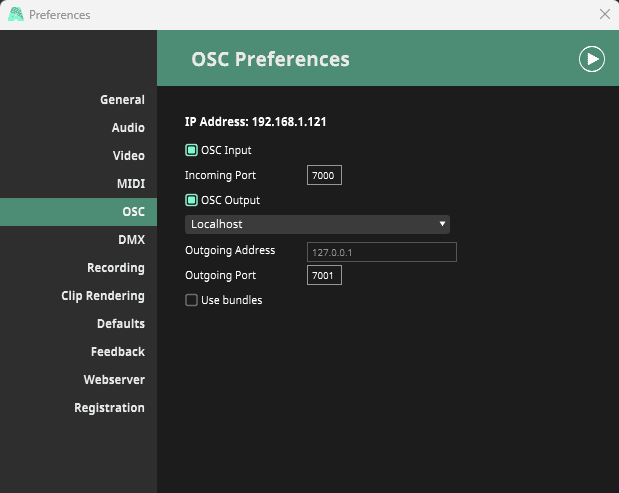
Mirror IN ⇄ OUT between apps.
If Resolume Input is7000, OSC⚡️See must send to7000.
If Resolume Output is7001, OSC⚡️See must listen on7001.
Important: On the same computer, two programs cannot listen on the same UDP port at once. Assign a unique IN port per app to avoid binding conflicts.
Having issues? See the OSC Debugging Guide.
NOTE: IF YOU EXPERIENCE SOME DIFFICULTIES ON THE OSC COMMUNICATION, PLEASE REFER TO THE OSC DEBUGGING GUIDE.
IP's setup
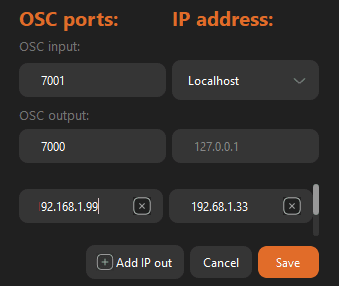
Use localhost (127.0.0.1) for apps on the same machine, or a Custom IP for any computer on your LAN (Windows/macOS), as long as ports match.
If you need redundancy, backups, or a render farm, add multiple IPs to drive several servers.
Add IP Out (multiple IPs & ports)
Add multiple destination IP:PORT pairs so OSC⚡️See can broadcast to many OSC targets.
Same computer (local apps): use localhost (127.0.0.1) or your own machine’s IP (e.g.,
192.168.x.x)—both work.
Each receiving program must use a different IN port.Example: Resolume IN
7000, Notch IN7010.
In OSC⚡️See, add two outputs:127.0.0.1:7000and127.0.0.1:7010(or)192.168.x.x:7000and192.168.x.x:7010.
Other computers (LAN): add the target machine’s IP (e.g.,
192.168.0.25) and its IN port.
Rule of thumb: one unique IN port per app on a given machine. OSC⚡️See can send to many destinations—add one IP:PORT per target.