General Overview - Quick Guide
Apr 8, 2022

What is OSC⚡️See?
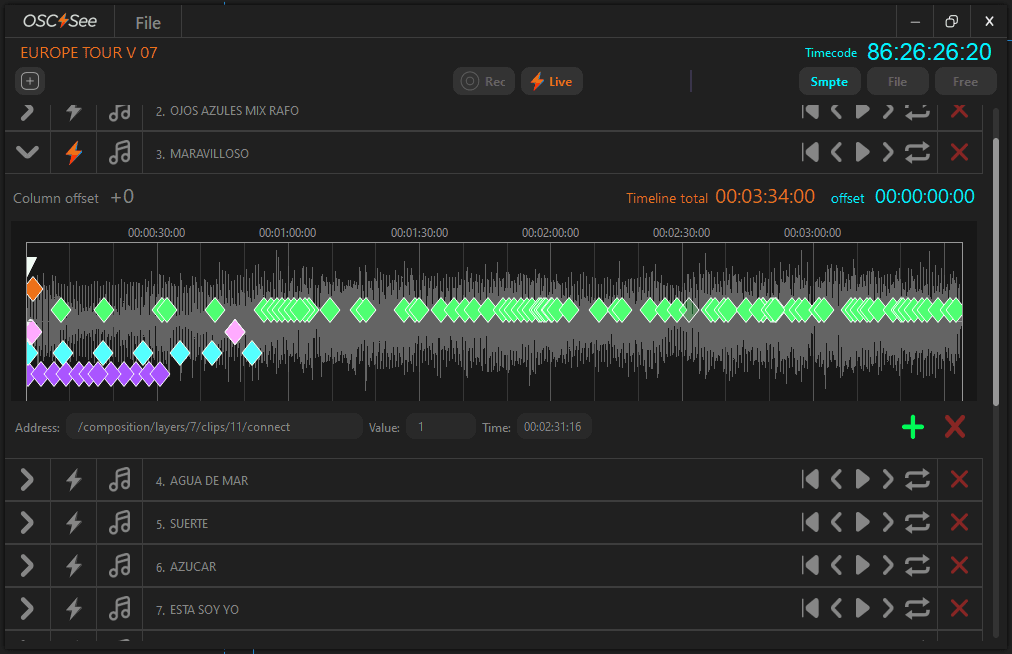
OSC⚡️See is a timeline-based editor for OSC protocol commands. It connects to any software that supports OSC. To establish communication, set Input/Output ports and an IP address (localhost or remote).
With OSC⚡️See, you create Tracks (timelines) to Record, Edit, and Live-record OSC commands—either by receiving them from your favorite software in Record Mode, or by creating them directly in the track’s editor.
The core dynamic of OSC⚡️See — Tracks
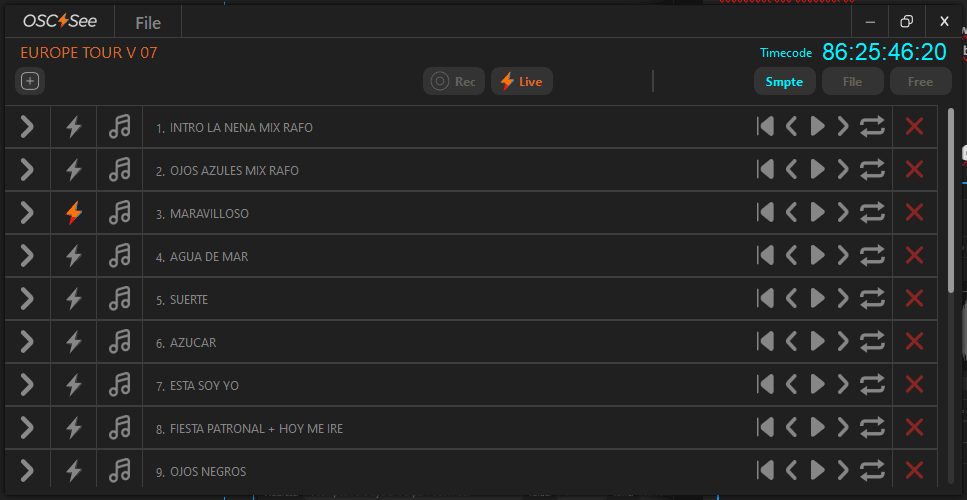
Tracks are the heart of OSC⚡️See. Each track is a timeline where you create keyframes/commands that control your OSC-capable software.
Rename a track by editing its title inline.
Reorder tracks by dragging.
Create a track with the “+” at the top left.
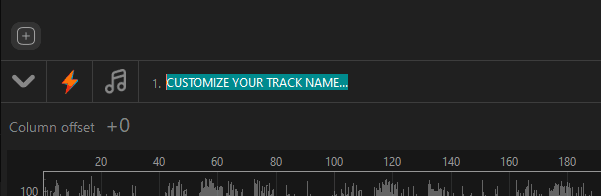
You may create or add a track just using the + sign on the top left corner.
Track Timecode
Each track can be driven by one of three sources:
SMPTE LTC — Linear Timecode received via audio input. (Configure the audio Input in Settings first.)
File — Load an audio file to drive the timeline. (Configure audio Output in Settings to listen.)
Free — A free-running internal timeline with no external sync.
SMPTE LTC Timecode:
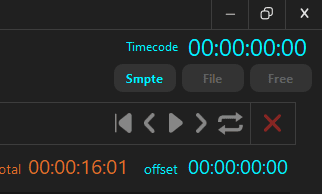
SMPTE LTC (overview)
SMPTE LTC is an industry-standard time reference encoding hours:minutes:seconds:frames in an audio signal. It’s widely used for frame-accurate sync across film/TV/live workflows and supports multiple frame rates and standards. OSC⚡️See can build your cues in File mode and then switch the same track to SMPTE to execute at exact show time.
LTC SMPTE Timecode Offset feature
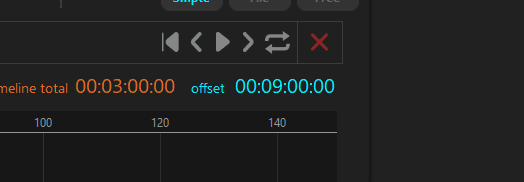
Per track, you can set an offset (click in the time field) to align to setlist timing.
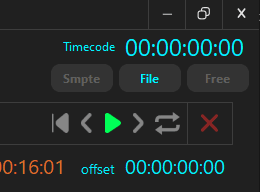
File source - Timecode:
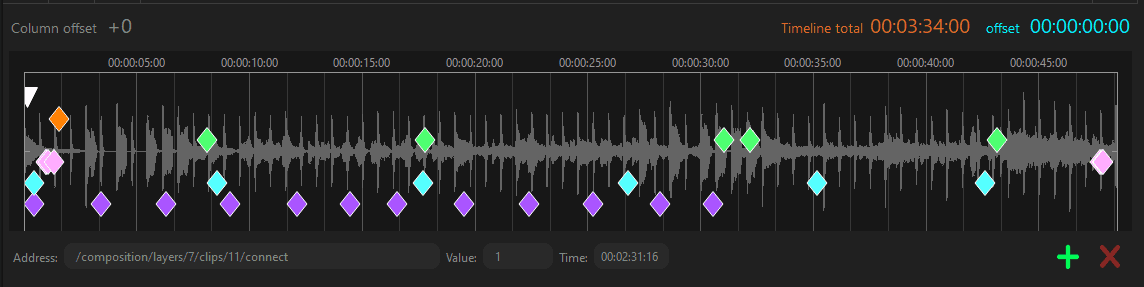
Import WAV/MP3 onto tracks. Waveform visualization helps place cues precisely.
Note (macOS): Waveform visualization is available for WAV files.
Free source - Timecode:
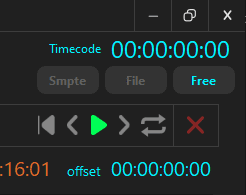
Run a standalone timeline, independent of external references—ideal for installations, corporate scenes, and live adjustments. Add/edit/delete commands anywhere, loop if needed, and tweak in real time.
OSC⚡️See Communication Modes
A. Neutral Mode:
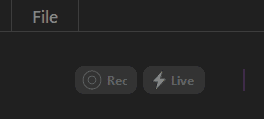
Neutral Mode – Neither records nor plays OSC (no button active).
B. Record (Rec) Mode:

Record (REC) Mode – Records incoming OSC from other apps.
Enable the desired address types/sources in OSC Addresses first.
C. Live Mode:

Live Mode – Plays timeline commands out to targets (IPs/ports).
One track at a time to prevent accidental triggers when multiple tracks share the same SMPTE time.
Command Markers+ (V2)
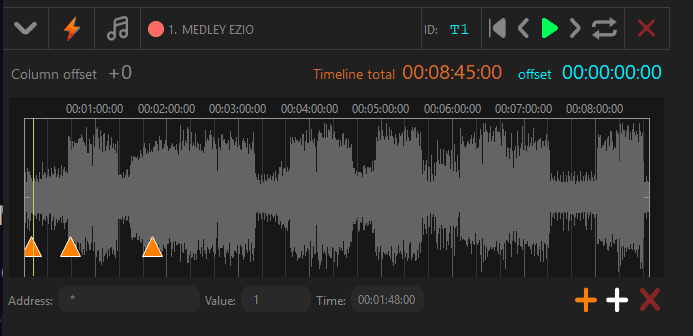
Compatibility note: Command-Markers+ is Resolume-only. (General OSC in OSC⚡️See still works with any OSC-capable software.)
What is Command-Markers+?
Turn timeline labels (e.g., Intro, Chorus, Drop) into executable commands for Resolume.
Name the cue in OSC⚡️See, then Sync Cue Markers to link by name to Resolume columns.
Program concept-first (labels), fill content later—no column numbering or re-mapping.
Quick start
Create a track & load your audio (or use SMPTE/Free).
Add Command-Markers+ (labels that will control Resolume by name) or import markers from CSV.
Sync with Resolume (Sync Cue Markers) pressing Right Click over the Timeline — columns are created/linked by label.
Press play — Resolume follows every cue in sync.
Traffic Light (sync status per track)
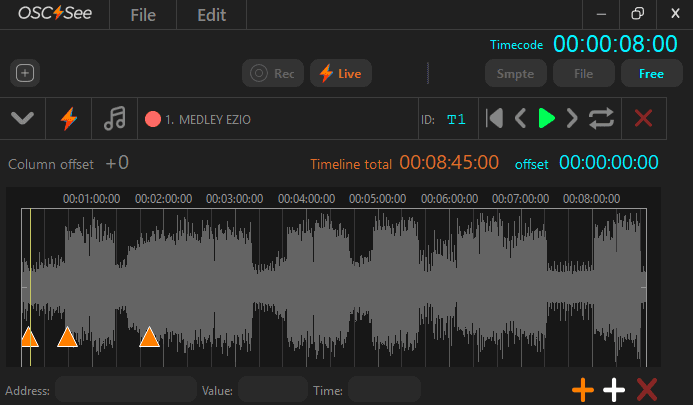
🟢 Synced
🟡 Missing/Duplicates
🔴 Not synced (Resolume closed, not linked, or you’re in another Deck)
Note:
Column scanning is performed at controlled intervals to avoid saturating OSC communication with Resolume.
After the initial sync, it is recommended to wait 1–2 minutes for the status to fully stabilize.
Super important note:
In Live Mode, click Live on the toolbar and arm the track with the Lightning Bolt. This prevents firing commands from a different SMPTE-aligned track.
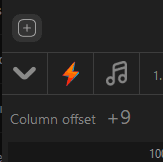
Navigation
Pan/Scroll: Spacebar + Left-click drag, or press mouse wheel.
Zoom: Mouse wheel, or hold Right-click and drag.